
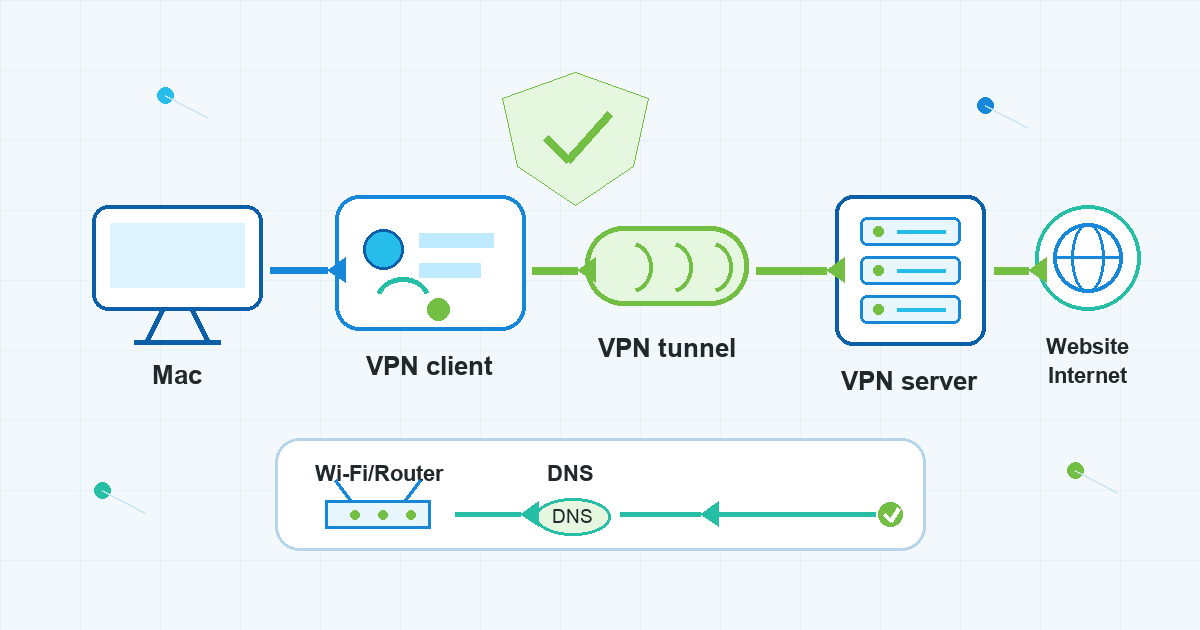
Best VPN Settings for Mac: What Apple’s Guidance Means in Practice
The best VPN settings for Mac are not a single magic profile. They depend on the VPN type you use, the way your traffic should be routed, and whether your Mac is personally managed or controlled by a work or school administrator.
Apple’s own VPN guidance is useful because it separates those pieces. For everyday Mac users, the practical goal is simple: enter the right connection details, avoid changing advanced options without a reason, and troubleshoot network issues in a clear order.
This guide explains what Apple’s setup, settings, routing, and troubleshooting documentation means for VPN Satelites readers using VPN Unlimited by KeepSolid on macOS.
Start With The VPN Details Your Mac Actually Needs
Apple’s setup guidance begins with the basics: before a VPN connection can work, the Mac needs the correct VPN type, server address, account name, and authentication details. In some cases, those details may come through a configuration file or provider instructions rather than manual entry.
That is the first rule for practical mac vpn settings: do not guess connection values. A wrong server address, login field, shared secret, certificate, or authentication method can make a VPN look broken even when the network itself is fine.
For VPN Unlimited by KeepSolid users, the safer approach is to start from the app or official provider instructions instead of manually recreating every field in macOS settings. The local VPN Satelites site positions VPN Unlimited as a Mac-focused VPN app, so most users should treat the app experience as the main place to connect, choose a server, and use supported app features.
Use manual macOS VPN fields only when you have confirmed that manual setup is part of your intended configuration and you have the exact details needed.
What Apple’s Settings List Tells You To Check
Apple’s VPN settings documentation shows that a configured VPN can include more than a server and username. Depending on the VPN type and configuration, users may see options related to authentication, Remote ID, Local ID, Connect on demand, DNS, proxies, and routing.
The useful takeaway is not that every Mac user should change all of those settings. It is that each setting has a job:
- Server address points your Mac toward the VPN endpoint.
- Account name and authentication details identify the user or device.
- Remote ID and Local ID may matter for certain VPN types.
- Connect on demand can control when macOS tries to start a VPN connection.
- DNS settings can affect how domain names are resolved while connected.
- Proxy settings can affect how some traffic is forwarded.
- Routing options can affect whether all traffic or only some traffic uses the VPN connection.
If you are looking up how to set up vpn on mac, keep this distinction in mind. Setup is about entering the required details correctly. Optimization is about changing only the settings you understand and only when they solve a real use case.
Protocol And Deployment Choices Change The Checklist
Apple’s security and deployment documentation makes one point especially clear: VPN settings depend on the protocol and deployment model. Apple discusses several VPN technologies and managed-device options, including enterprise-oriented cases such as VPN On Demand and Per-app VPN.
For a personal Mac, that does not mean you need to study enterprise deployment before connecting to a VPN. It means you should avoid copying advice from a business-device guide unless your Mac is actually managed by an organization.
A personal Mac user usually needs a much shorter checklist:
- Is the VPN app installed from the correct source?
- Are you signed in with the right account?
- Are you connecting to an appropriate server or location for your task?
- Are you using settings supported by your VPN app or provider?
- Did the issue begin after changing DNS, proxy, routing, firewall, or security software settings?
For managed Macs, work or school policy can determine which VPN settings are allowed. In that case, follow your organization’s instructions. This article is not legal, compliance, or IT administration advice.
Should You Send All Traffic Over The VPN On Mac?
The phrase send all traffic over vpn mac usually points to routing. In plain language, it asks whether the VPN should carry all network traffic from the Mac or only traffic for certain destinations.
Apple notes routing options in its settings guidance, but availability varies by VPN type and configuration. That caveat matters. You may not see the same routing controls on every Mac, every macOS version, or every VPN setup.
For everyday use, a full VPN route can be helpful when you want ordinary browsing traffic to go through the VPN connection, such as on public Wi-Fi or while traveling. A narrower route can make sense in some work or managed-device environments where only specific business resources should use the VPN.
The practical rule is:
- Use the default app or provider-recommended routing unless you have a specific reason to change it.
- Do not assume a missing routing option means something is wrong.
- If changing routing breaks websites, apps, printing, local devices, or work tools, switch back and test one variable at a time.
VPN Unlimited by KeepSolid users should keep routing expectations tied to the actual app and supported configuration they are using, not to generic screenshots from other VPN environments.
DNS And Proxy Settings: Leave Them Alone Unless You Know Why
DNS and proxy settings are common places where users over-tune a working connection.
DNS turns domain names into network addresses. Proxy settings can forward certain web or network requests through another server. Both can be legitimate parts of a VPN or network setup, but they can also create confusing failures when values are copied from an old guide, workplace setup, or unrelated troubleshooting thread.
Apple’s settings list is a reminder to check these fields when something changed recently. It is not a reason to edit them casually.
Before changing DNS or proxy values, ask:
- Did your VPN provider or administrator explicitly tell you to use these values?
- Did the problem begin after adding custom DNS or proxy settings?
- Does the issue happen only on one Wi-Fi network?
- Does the issue continue after disconnecting and reconnecting the VPN?
If you cannot answer those questions, document the current values before changing anything. That makes it easier to undo the change if your connection gets worse.
If Your VPN Is Not Working On Mac, Troubleshoot In Order
When a VPN connection fails, it is tempting to change several settings at once. Apple’s Wi-Fi troubleshooting guidance points to a better habit: treat VPN or other security software as one possible factor while also checking Wi-Fi, date and time, router, ISP, and general network conditions.
If you are searching for vpn not working on mac, use this order before assuming the VPN settings are the root cause:
- Check whether your Mac has internet access without changing VPN settings.
- Confirm the Wi-Fi network is working for other sites or devices.
- Check date and time settings, because authentication can depend on accurate time.
- Restart the VPN app and try reconnecting.
- Try another appropriate VPN server or location inside the app, if available.
- Review whether DNS, proxy, firewall, security software, or routing settings were changed recently.
- If the Mac is managed by work or school, check whether the organization controls VPN behavior.
This order helps you avoid turning a Wi-Fi problem into a VPN configuration problem. It also makes support conversations more useful because you can describe what changed and what you already tested.
A Practical Settings Checklist For VPN Satelites Readers
For most Mac users, the best VPN setup is the one that is correct, supported, and easy to recover if something changes. Use this checklist before editing advanced settings:
- Start with VPN Unlimited by KeepSolid’s Mac app or official setup path.
- Keep sign-in, server selection, and connection controls inside the app unless manual configuration is required.
- Treat protocol names, routing choices, DNS fields, and proxy fields as configuration details, not universal performance switches.
- Use full-routing options only when they are available and match your goal.
- Keep workplace or school Macs aligned with administrator policy.
- Troubleshoot one change at a time.
- Avoid advice that depends on a VPN competitor, a different app interface, or an unrelated enterprise setup.
That is a more reliable way to think about the best vpn settings for mac: not as a hidden list of aggressive tweaks, but as a small set of choices that match your actual VPN configuration.
FAQ
What are the best VPN settings for Mac?
The best settings are the provider-supported settings for your VPN type and use case. Start with the correct VPN type, server details, account information, and authentication method. Then adjust routing, DNS, proxy, or connect behavior only when you have a specific reason and know how to reverse the change.
Where do I find Mac VPN settings?
macOS includes VPN settings for configured VPN connections, and VPN apps may also manage connection settings inside the app. Which controls you see depends on the VPN type, macOS version, app, and whether the Mac is personally owned or managed by an organization.
Should all Mac traffic go through the VPN?
It depends on the routing option available in your setup and what you are trying to do. Sending all traffic through the VPN can make sense for general browsing on public Wi-Fi, but some managed or specialized configurations route only selected traffic. Do not assume every VPN setup exposes the same control.
Why is my VPN not working on Mac?
A VPN connection problem can come from incorrect login details, server settings, routing, DNS, proxies, Wi-Fi, router conditions, date and time issues, ISP problems, security software, or device-management policy. Check basic internet access first, then test VPN-specific settings one at a time.
Should I change DNS or proxy settings for a VPN on Mac?
Only change them when your VPN provider, administrator, or a clear troubleshooting need requires it. DNS and proxy changes can help in specific configurations, but random values can also break browsing or make problems harder to diagnose.